
Lingoverse redesign: everything from your chat now has its own section
We redesigned the Lingoverse Space on the web. Words, phrases, grammar and exercises from your AI chat now have their own sections, flashcards sit next to the chat, and exercises save your progress.
In Lingoverse you learn by talking to an AI tutor inside a Space, one Space per topic or goal. Every conversation leaves things behind: word cards, phrase sets, grammar explanations, exercises. Over the last two months we rebuilt the web app around those things, so you can find, review and reuse them without scrolling back through the chat.
The new layout is live for everyone on the web today.
Every Space has sections now
Open a Space and you get a slim rail with six entries: Chat, Flashcards, Words, Phrases, Grammar and Exercises. Each entry shows how much is inside, so you can tell at a glance what a Space holds.
The section you pick opens in a pane beside the chat, so you can read a grammar card or scan your word list without leaving the conversation. You can swap the chat and the section around, or give either one the full width when you want to focus.
You don't have to file anything. Word, phrase and grammar cards from the chat land in their section as soon as the tutor creates them. Ask about the difference between por and para, and the explanation is waiting under Grammar the next time you need it.
Flashcards next to the chat
Flashcards got their own tab. Opening it starts a smart review of the words that are due. If you would rather go through everything, a switch moves you to all the words in the Space. When nothing is due, the tab tells you when the next review is.
The rail and the sidebar both show how many words are waiting, so you know which Space needs attention before you open it.
A sidebar that lists every Space
The sidebar folds into a slim icon rail. It lists every Space, the most recently active first, and each row says how many words are waiting. Hover over a Space to see what it holds: words, phrases, grammar topics and exercises. The old Practice button is now called Review.
Moving things between Spaces
Sometimes a word belongs in another Space, or a Space turns into two. You can now select words, phrase sets, grammar cards and exercises, several at once, and move them to another Space or delete them. Spaces themselves go into folders the same way, so a growing collection stays easy to find.
Exercises got the most work
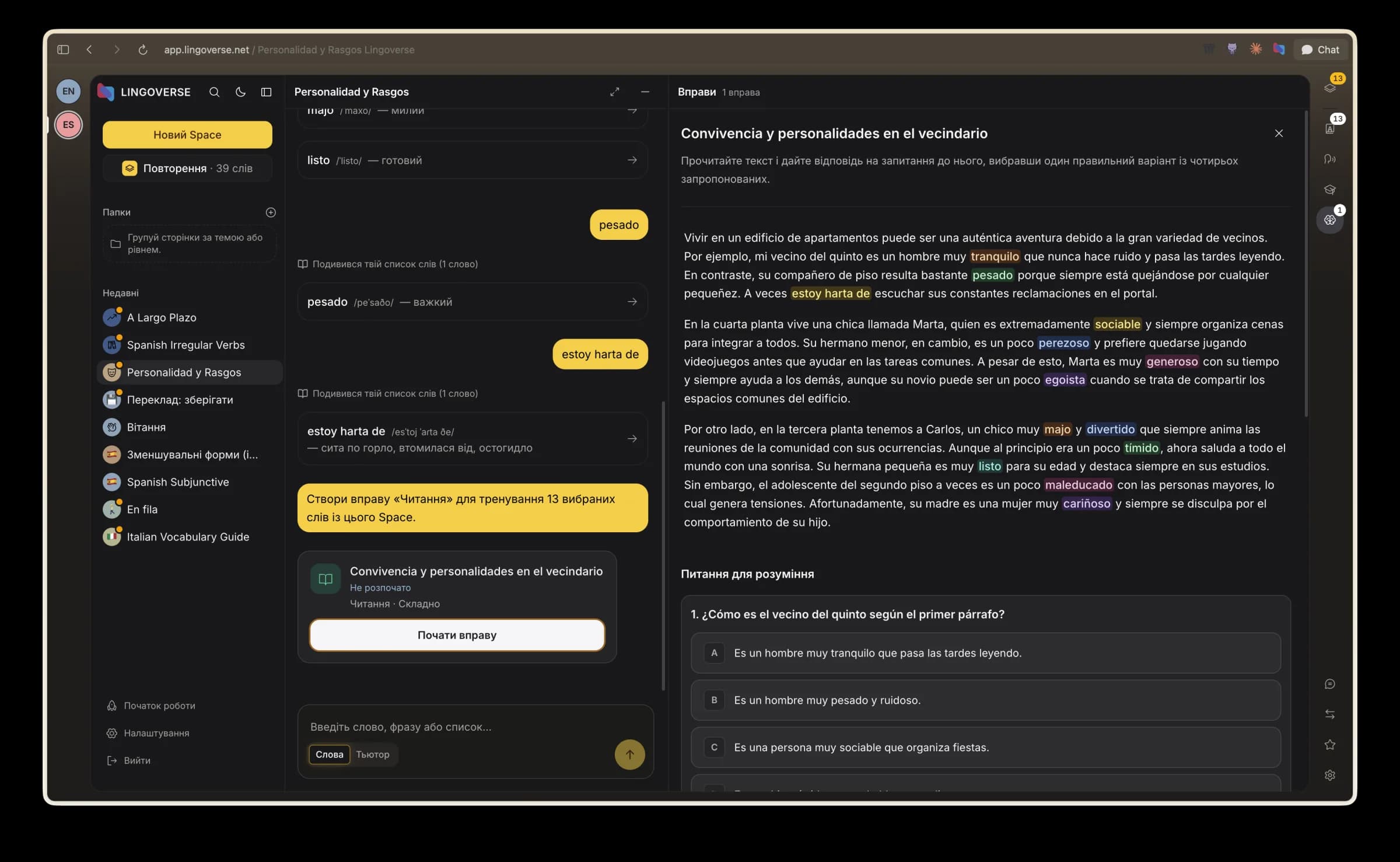
Building an exercise takes a few clear steps. Ask for an exercise and the tutor walks you through it in the chat: pick the type, choose whether to practice words or grammar, then choose the material. That can be words from this Space, words on a topic, grammar from this Space, or grammar on a topic. For words, you pick the exact ones you want to drill. For topics, you can type your own. If you would rather just type "a reading exercise about my travel words", the tutor understands that too and keeps the words you chose.
Your progress is saved. Close an exercise halfway through and it opens where you left it. A finished exercise shows your score and a button to try it again from scratch.
You see what went wrong. After you finish, "Show what went wrong" takes you through your mistakes. The result also goes back into the chat, so the tutor knows which words tripped you up.
Cards tell you what's inside. Fill-in-the-blank cards in the Exercises section show one of their sentences, and reading exercises get a real title instead of a generic label.
All six exercise types are still here: fill in the blank, word order, matching, reading, grammar choice and error correction. We put this round of work into making each of them easier to start, finish and come back to.
Talk to your tutor out loud
Most of what you collect in a Space is something you read and type. Voice calls let you say it. Press Speak in the chat and you are on a voice call with the tutor, without leaving the Space.
The tutor comes to the call with your Space in front of it: the recent chat, the words, phrases and grammar you saved, the mistakes from your last exercises, and what it remembers about you. It picks up the conversation from there, so the words you have been collecting turn into words you actually say.
When you hang up, a recap of the conversation is written into the chat in your native language, so what you talked about stays in the Space with everything else.
Voice calls work for English and Spanish for now.
Smaller changes in the chat
- Images. Drop a screenshot of a menu, a sign or a page from your textbook into the chat and ask the tutor about it.
- Dictation. Tap the mic in the composer and speak. Your words show up as text you can edit before sending.
Try it
If you have an account, open any Space on the web. Your existing words, phrases, grammar and exercises are already sorted into their sections.
If you don't have an account yet, sign up and start a conversation with the tutor about whatever you need right now. The words, phrases and grammar from that conversation are saved to your Space as you go.